
Download 3D Builder – Free 3D Modeling, Editing & Printing Tool
Overview
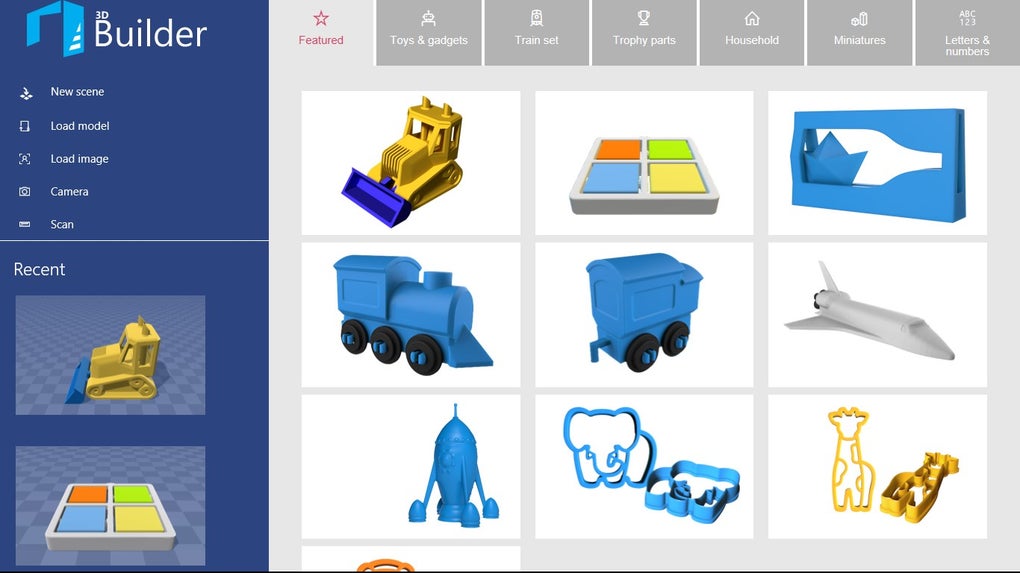
3D Builder is a powerful yet user‑friendly application designed for creating, editing, and personalising 3‑dimensional objects. Whether you are a seasoned 3D modeler or a complete beginner, the tool offers an intuitive workspace that lowers the learning curve without sacrificing the flexibility needed for more advanced projects. Users can start from a blank canvas by selecting from a library of basic geometric shapes—cubes, spheres, cones, and more—or they can import existing models in popular formats such as STL, OBJ, and 3MF.
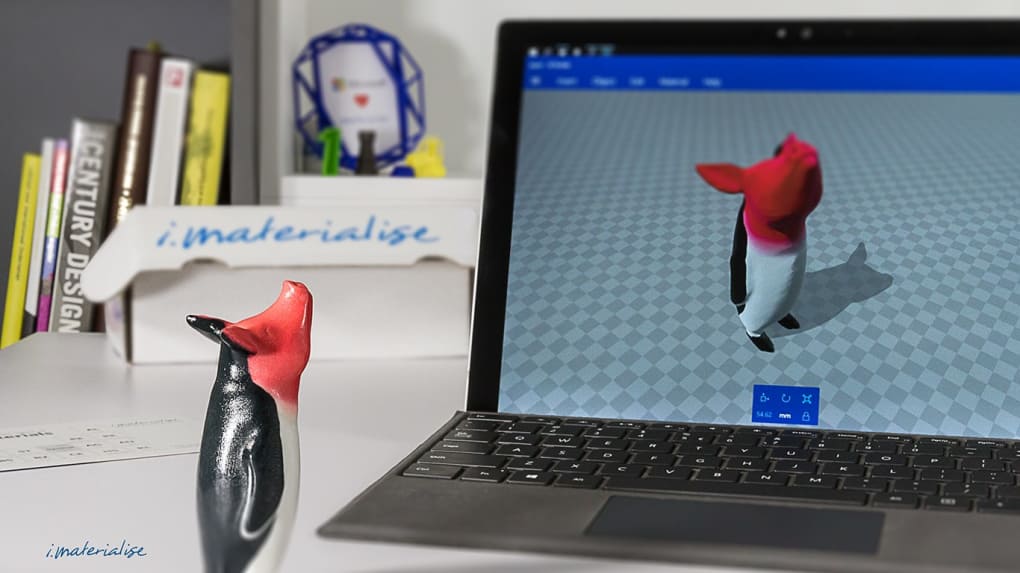
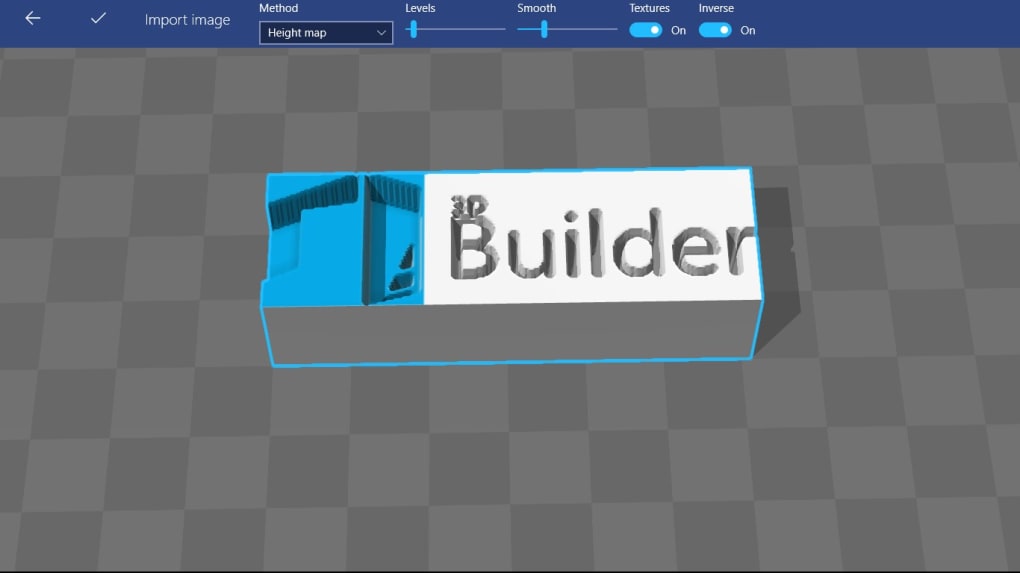
One of the most distinctive features is the ability to capture a real‑world object with a webcam, instantly converting the photo into a printable 3‑D mesh. This “photo‑to‑3D” workflow makes rapid prototyping and creative experimentation accessible to anyone with a standard PC and a camera. The app also supports text and image embossing, allowing you to add custom logos, names, or decorative patterns to your models, which is ideal for personalised gifts, trophies, or small‑batch manufacturing.
For users preparing files for 3‑D printing, 3D Builder includes automatic repair tools that detect and fix common mesh errors, such as holes, non‑manifold edges, and flipped normals. Additionally, the drag‑and‑drop interface lets you merge, subtract, or slice objects with a few clicks, and you can quickly add a flat base to improve stability during printing. While the software shines in its ease of use and rapid‑prototype capabilities, power users may notice limited advanced sculpting tools, occasional glitches when handling very large meshes, and performance slow‑downs on modest hardware.
Nonetheless, for personal projects, classroom assignments, or small‑scale professional work, 3D Builder delivers a balanced mix of creativity, practicality, and accessibility.
Core Features & Capabilities
- Webcam‑to‑3D Conversion: Capture an object with a standard webcam and instantly generate a printable 3‑D model.
- Extensive Import/Export Support: Compatible with STL, OBJ, 3MF, PLY, and other common file types.
- Shape Library & Customization: Start from basic primitives or combine them to form complex geometries.
- Text & Image Embossing: Add personalised text, logos, or images directly onto the surface of a model.
- Automatic Mesh Repair: Built‑in tools identify and fix holes, non‑manifold edges, and flipped normals.
- Boolean Operations: Merge, subtract, and intersect objects using intuitive drag‑and‑drop controls.
- Base Creation: Generate a stable base for any model to improve printing reliability.
- Slice & Preview: View cross‑sections, inspect internal structures, and prepare models for layer‑by‑layer printing.
- Integration with 3D Scan App: Import full‑color scans of real objects for hybrid designs.
- Free Updates & Cloud Sync: Receive regular feature updates and optionally sync projects via Microsoft account.
Why These Features Matter
For hobbyists, the webcam conversion feature eliminates the need for expensive 3‑D scanners, turning everyday objects into digital assets with just a few seconds of setup. Students benefit from the drag‑and‑drop Boolean tools, which simplify complex geometry creation without requiring command‑line expertise. Professionals who produce low‑volume custom parts appreciate the automatic mesh repair, which reduces the time spent cleaning up STL files before sending them to a printer.
Moreover, the embossing capability turns 3D Builder into a quick‑turn prototyping solution for branding—think custom keychains, nameplates, or limited‑edition awards. The integration with Microsoft’s 3D Scan app expands the creative horizon, allowing users to blend scanned textures with hand‑crafted models, a workflow previously reserved for high‑end CAD packages. Finally, because the software is free and receives regular updates, users can stay current with the latest printing standards and file‑format improvements without additional cost.
Installation, Usage & Compatibility
Step‑by‑Step Installation
Downloading 3D Builder is straightforward. Visit the official Microsoft Store page, click “Get,” and the application will automatically download and install on Windows 10 or later. The installer occupies roughly 150 MB and requires a minimum of 2 GB RAM and a graphics adapter that supports DirectX 11. After installation, launch the program from the Start menu; the first run will prompt you to sign in with a Microsoft account, which unlocks cloud sync and access to the latest updates.
First‑Time Workflow
Upon opening 3D Builder, you are greeted with a clean workspace divided into a central canvas, a left‑hand toolbar, and a right‑hand properties panel. Beginners typically start by selecting a primitive shape from the “Add” menu. Drag the shape onto the canvas, then use the on‑screen gizmos to scale, rotate, or move it into place.
To import an existing model, click “Open” and browse for an STL or OBJ file. The program will automatically analyse the mesh and suggest repairs if needed. For webcam conversion, click the camera icon, align the object in view, and press “Capture.” Within seconds, a rough 3‑D mesh appears, ready for refinement.
Editing & Exporting
Editing tools are accessible via the toolbar: “Split” cuts a model into sections, “Combine” merges multiple meshes, and “Subtract” removes intersecting volumes. The “Text” tool opens a dialog where you can choose font, size, depth, and emboss location. Once satisfied, click “Export” and select the desired file type—STL for most 3‑D printers, OBJ for textured renders, or 3MF for advanced slicer software. The export dialog also offers options to reduce polygon count or apply a uniform scale, which helps when preparing models for low‑resolution printers.
System Requirements (itemprop="operatingSystem")
3D Builder runs natively on Windows 10 and Windows 11 (both 64‑bit). The application leverages the Windows Graphics Device Interface (GDI) and requires a GPU that supports at least OpenGL 4.0 for smooth manipulation of complex meshes. While the software is not officially available for macOS, Linux, Android, or iOS, users can run it through a Windows virtual machine or via remote desktop solutions. For optimal performance, especially when handling large models (>10 million polygons), a system with 8 GB RAM or more and a dedicated graphics card (e.g., NVIDIA GTX 1050 or higher) is recommended.
Pros, Cons, FAQ & Final Verdict
Pros & Cons
- Pros:
- Free to download and use with regular updates.
- Intuitive drag‑and‑drop interface suitable for beginners.
- Webcam‑to‑3D conversion removes the need for expensive scanners.
- Automatic mesh repair streamlines preparation for 3‑D printing.
- Supports a wide range of import/export formats.
- Cons:
- Lacks advanced sculpting tools found in professional CAD suites.
- Performance can degrade with extremely large or highly detailed models.
- Occasional UI glitches on lower‑end hardware.
- Only available for Windows; no native macOS, Android, or iOS version.
Frequently Asked Questions
Is 3D Builder truly free or are there hidden costs?
3D Builder is completely free to download from the Microsoft Store. All core features, including webcam conversion and mesh repair, are available without any subscription or in‑app purchases. Optional cloud storage for syncing projects may consume space on your Microsoft OneDrive account, which follows the standard OneDrive quota.
Can I use 3D Builder for professional‑grade 3‑D printing?
Yes, many small‑business owners use 3D Builder to design custom parts, prototypes, and promotional items. The built‑in mesh repair and export options (STL, 3MF) meet the requirements of most consumer‑grade 3‑D printers. For highly complex industrial parts, a dedicated CAD program may still be preferable.
What hardware is recommended for smooth performance?
A 64‑bit Windows 10/11 PC with at least 8 GB RAM, a multi‑core CPU, and a GPU supporting DirectX 11 (or OpenGL 4.0) offers the best experience. Models under 5 million polygons run fluidly on most modern laptops; larger meshes benefit from dedicated graphics memory.
How does the webcam conversion handle textures?
The webcam conversion creates a basic mesh based on depth cues from the captured image. While it captures shape accurately, it does not retain colour or texture information. For colourised models, you can import the mesh into a more advanced tool or use the 3D Scan app, which supports full‑colour scanning.
Is there a way to share my designs directly from 3D Builder?
Yes. By signing in with a Microsoft account, you can upload projects to OneDrive and generate shareable links. Additionally, exported STL/OBJ files can be attached to emails or uploaded to online repositories such as Thingiverse.
Conclusion & Call to Action
Overall, 3D Builder strikes an impressive balance between simplicity and capability. Its free price point, combined with unique features like webcam‑to‑3D conversion and automatic mesh repair, makes it a compelling choice for educators, hobbyists, and small‑scale professionals alike. While power users may crave deeper sculpting tools and macOS support, the core experience remains solid, reliable, and continuously updated by Microsoft. If you are looking for a quick way to bring ideas to life—whether it’s a custom keychain, a prototype part, or a personalized trophy—download 3D Builder today and start turning your imagination into printable reality.







